Just Why?
The first thing that needs to be addressed is why I decided to make this website. Why did I spend the entirety of 19th January 2025 figuring out how to host this goddamn webpage?
The reasons are threefold:
- I have lately realized I love to yap, have tons of thoughts, and would love a place to pen (type) them down (hence the blog).
- I have always been somewhat obsessed with the idea of having a domain name for myself. I splurged a bit today and therefore had to add content to the page with my name—what better than random thoughts?
- I have to thank Aniruddha Deb for the idea of hosting a blog page using Hugo. I have always enjoyed reading his blogs and was inspired by him to create something similar.
You will see that the theme of this page is inspired by Aniruddha’s page because I found Hugo through his blog and used some style elements from his GitHub repository.
Why this guide?
I have been trying to set up a page with Hugo for a very, very long time now, and until today, I had only failed. I bought a domain for Aries-IITD yesterday and hosted the club webpage there. I thought of doing the same for myself, so I bought my own domain XD. (Yup, I bought the domain before setting up the webpage.) This basically meant I had to set this up, or I would have been very disappointed in myself.
This guide assumes you are working with macOS and have Homebrew installed (if not, what the hell are you doing?). It’s a step-by-step guide, so it should be easy.
1. Install Hugo
brew install hugo
2. Create a new site
Run this in your projects directory:
hugo new site blogpage
cd blogpage
On navigating to your site, you will find some predefined files and folders.
3. Adding a Hugo Theme
Add Hugo Paper as a submodule:
git init
git submodule add https://github.com/adityatelange/hugo-PaperMod.git themes/PaperMod
Update hugo.toml/config.toml:
theme = "PaperMod"
4. Adding sections to the webpage
Adding homepage content
vim content/_index.md
Paste content:
---
title: "Welcome"
draft: false
---
Hi, I'm Vaibhav Seth! Welcome to my blog and research website.
5. Adding a blog page
mkdir -p content/blog
vim content/blog/_index.md
Add a description to the blog page landing (_index.md):
---
title: "Blog"
draft: false
---
Welcome to my blog! Explore my latest thoughts and experiences.
Add a blog post:
hugo new blog/first-post.md
Add content:
---
title: "Quack"
date: 2025-01-19
draft: false
---
Quack.
Other pages can be added similarly.
6. Navigation Links
We will be editing hugo.toml/config.toml:
[[menu.main]]
name = "Home"
url = "/"
weight = 1

[[menu.main]]
name = "Blog"
url = "/blog/"
weight = 2

[[menu.main]]
name = "Papers"
url = "/papers/"
weight = 3
7. Testing and Deployment
To test locally, go to the root of the Hugo project and run the following:
hugo server
This will host a local website.
To deploy, run the following command at the same level:
hugo
This will build files and add them to the public directory.
To host this page on GitHub Pages, run the following commands inside public:
cd public
git init
git remote add origin https://github.com/<your-username>/<your-username>.github.io.git
git add .
git commit -m "Deploy Hugo site"
git push -f origin main
The site will be live at: https://<your-username>.github.io/
Every time you make changes, make sure to build the static site by running the Hugo command and doing a git push.
8. Configuring GitHub Pages
- Navigate to the repository named
<your-username>.github.io - Go to Settings > Pages (under “Code and Automation”)
- Under “Build and Deployment,” select “Deploy from branch” as the source.
- Under “Branch,” select
mainas the branch and/(root)as the directory to host from.
Hosting to a custom domain (using GoDaddy Domains as an example)
Getting a domain
The best way, in my opinion, is GoDaddy. The domains are reasonably priced (it cost me around ₹650 for one year).
Configuring your domain
It’s straightforward. You have to add a few entries to your DNS configuration to ensure that your domain redirects to GitHub Pages.
To reach DNS settings on GoDaddy: Menu > My Products > (click on Manage on the domain to configure) > Domain > Manage DNS.
Add the following records by clicking on “Add New Record”:
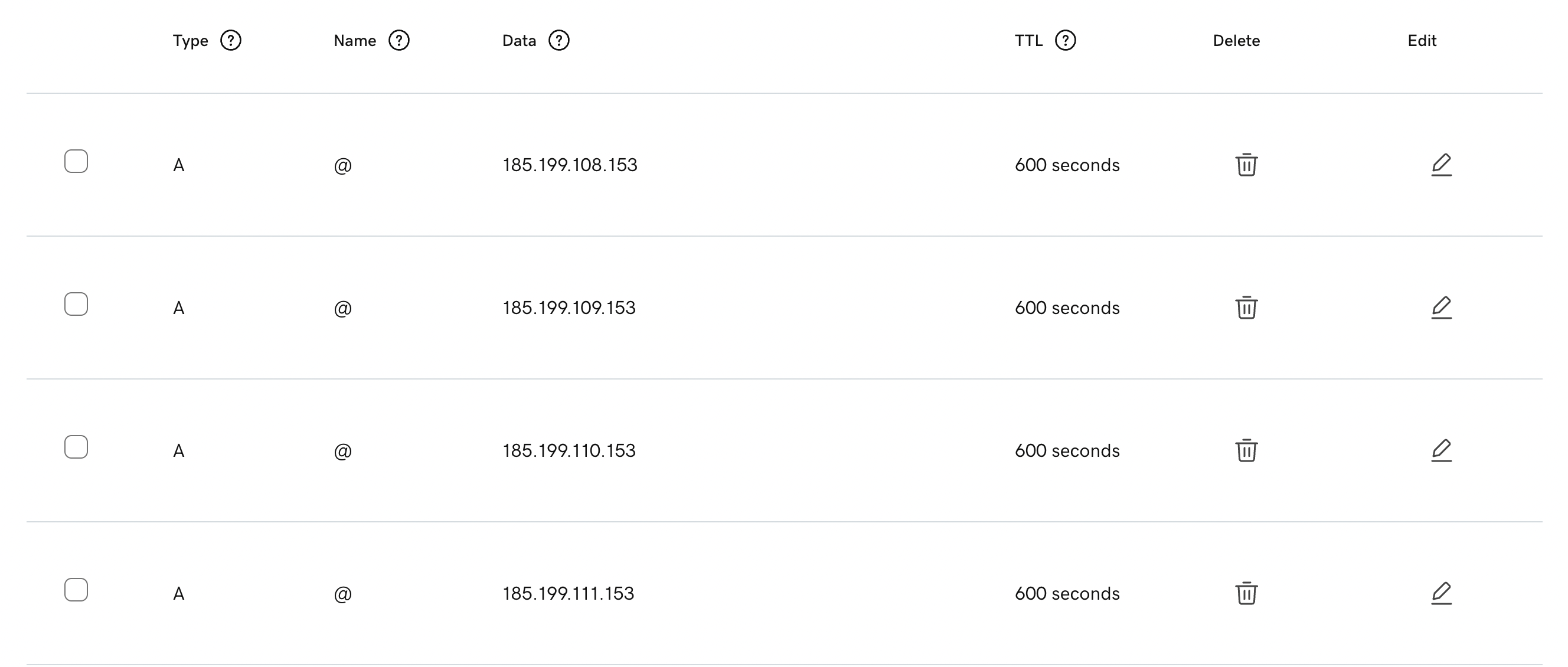
Replace with your GitHub ID:

Now return to the “Pages” setting on GitHub. You will see a section named “Custom Domain.” Enter your domain with www.

Click on “Enforce HTTPS” to make your site secure. This is usually available a few hours after hosting your site.
Now check your domain. Your site should be available there.